
VSCode voice extensions: A developer's guide to hands-free coding
Complete guide to VSCode voice extensions. Compare features, setup guides, and learn how to integrate voice commands into your daily coding workflow.
TL;DR
VSCode voice extensions let developers speak prompts and commands instead of typing. The best options for 2026 are Whispercode (AI prompting), GitHub Copilot Voice (code generation), and Talon (full hands-free control). Choose based on your primary use case.
Key takeaways
- Voice extensions serve different purposes — AI prompting tools, voice-to-code tools, and full hands-free systems each solve different problems for developers
- Setup takes 5-15 minutes — Most extensions install directly from the VSCode marketplace with minimal configuration
- Technical accuracy varies significantly — Developer-focused tools recognize
useStatecorrectly; general tools often transcribe "use state" - IDE context matters — Extensions that include file path, selected code, and cursor position produce better AI responses
- Flow state protection is the main benefit — Voice input eliminates the context switch that costs developers 23 minutes of refocus time
- Accessibility extends to all developers — Voice extensions benefit RSI sufferers, but also any developer who wants faster prompt creation
 Complete guide to voice extensions for VSCode, Cursor, and Windsurf
What are VSCode voice extensions?
VSCode voice extensions add speech-to-text and voice command capabilities to your development environment. Instead of typing prompts for AI assistants or navigating with keyboard shortcuts, you speak naturally and the extension handles the translation.
These extensions fall into three categories:
- AI prompting tools — Convert speech into structured prompts for Claude, ChatGPT, or Copilot
- Voice-to-code tools — Generate code directly from natural language descriptions
- Hands-free control systems — Navigate and edit without touching keyboard or mouse
Each category serves different needs. Understanding the differences helps you choose the right tool.
Why do developers use voice extensions?
Speed advantage
Average typing speed for developers is 40-60 WPM. Speaking speed averages 150 WPM. For a detailed prompt explaining a bug, that's 3x faster input.
But raw speed isn't the primary benefit.
Flow state protection
The real value is staying in flow. When you're debugging a complex issue, you've built a mental model of the problem. Breaking to type a prompt means:
- Context switch to text input
- Formulate words while holding code context
- Type, edit, retype
- Return to code with degraded mental model
Voice input eliminates steps 2 and 3. You speak while looking at the code, and the prompt appears ready to send.
Richer context capture
Developers type minimal prompts because typing is effortful. Speaking is natural, so prompts include more detail:
Typed prompt:
"Fix the login bug"
Spoken prompt:
"The login form has a bug where the loading state gets stuck after successful authentication. The network request returns 200 but isLoading never flips back to false. The issue is probably in useLoginForm where we handle the response."
The spoken version gives AI assistants enough context to provide useful help on the first try.
What voice extensions work with VSCode?
Whispercode extension
Category: AI prompting Best for: Developers who use Claude, ChatGPT, or Copilot for coding assistance
Whispercode's VSCode extension focuses on creating structured prompts with automatic context:
Features:
- Global hotkey activation (
Cmd+Shift+K) - Automatic file context inclusion
- Selected code embedded in prompts
- AI formatting into structured output
- Developer dictionary for technical terms
Setup time: 5 minutes
How it works:
- Install from VSCode marketplace
- Configure global hotkey
- Press hotkey, speak prompt
- Formatted prompt appears in editor
The extension captures your current file, any selected code, and cursor position. This context gets included automatically, so AI assistants understand what you're working on.
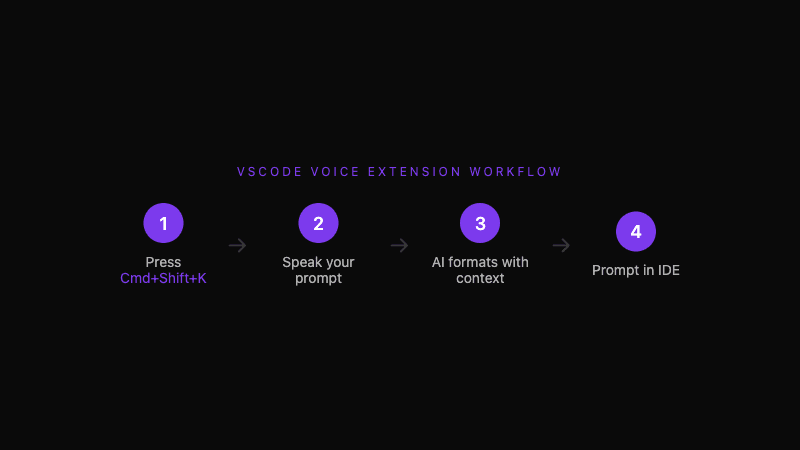 Voice prompt workflow: hotkey → speak → AI formats → prompt in IDE
GitHub Copilot Voice
Category: Voice-to-code Best for: Developers who want to generate code directly from descriptions
GitHub Copilot's voice features allow natural language code generation:
Features:
- "Hey GitHub" wake word
- Natural language code generation
- Voice-controlled navigation
- Integration with Copilot suggestions
Setup time: 10 minutes (requires Copilot subscription)
How it works:
- Enable voice features in Copilot settings
- Say "Hey GitHub" to activate
- Describe what you want: "Create a function that validates email addresses"
- Copilot generates the code
This approach works well for generating boilerplate or implementing well-defined functions. It's less suited for nuanced conversations about debugging or architecture.
Talon Voice
Category: Full hands-free control Best for: Developers with RSI or those who want complete keyboard-free coding
Talon Voice provides comprehensive hands-free computing:
Features:
- Speech recognition for commands
- Eye tracking support
- Noise recognition (pop and hiss)
- Fully scriptable with Python
- VSCode integration via community scripts
Setup time: Hours to days (requires learning command syntax)
How it works:
- Install Talon and community scripts
- Learn command vocabulary
- Use commands like "word camel case my variable" →
myVariable - Chain commands for complex operations
Talon has a steep learning curve but enables complete hands-free operation. It's invaluable for developers with mobility limitations or RSI, and some use it to reduce keyboard strain even without injury.
VS Code Speech Extension
Category: Basic dictation Best for: Developers who want built-in, zero-config voice input
Microsoft's official speech extension provides basic dictation:
Features:
- Built into VS Code (no additional install)
- Simple activation
- Multiple language support
- No external dependencies
Setup time: 2 minutes
How it works:
- Enable in VS Code settings
- Use keyboard shortcut to activate
- Speak text that appears at cursor
This extension handles basic dictation but lacks developer-specific features like technical vocabulary, AI formatting, or context awareness.
How do you choose the right extension?
Decision framework
What's your primary use case?
│
├── AI prompting (Claude/ChatGPT/Copilot) ──→ Whispercode
│   - You need structured prompts
│   - IDE context matters
│   - Technical accuracy required
│
├── Code generation from descriptions ──────→ Copilot Voice
│   - You describe what you want
│   - Code appears directly
│   - Best for implementation, not debugging
│
├── Full hands-free control ────────────────→ Talon Voice
│   - Keyboard/mouse not an option
│   - Willing to invest in learning
│   - Need complete voice control
│
└── Basic dictation ────────────────────────→ VS Code Speech
    - Occasional use
    - No special requirements
    - Zero setup preferred
Comparison table
| Feature | Whispercode | Copilot Voice | Talon | VS Code Speech |
|---|---|---|---|---|
| Primary use | AI prompts | Code generation | Full control | Basic dictation |
| Setup time | 5 min | 10 min | Hours | 2 min |
| Learning curve | Low | Low | High | None |
| Tech vocabulary | Excellent | Good | Excellent | Poor |
| IDE context | Automatic | Partial | Manual | None |
| Cost | Subscription | Copilot sub | Free | Free |
How do you set up a voice extension?
Whispercode setup guide
Prerequisites:
- VSCode, Cursor, or Windsurf
- macOS (Windows support coming)
- Microphone access
Installation steps:
-
Install the desktop app Download from whispercode.co and complete onboarding
-
Install the IDE extension Search "Whispercode" in VSCode extensions marketplace
-
Connect app and extension The extension auto-detects the desktop app on first launch
-
Configure hotkey Default is
Cmd+Shift+Kfor Prompt Mode Change in extension settings if needed -
Test the workflow
- Select some code in your editor
- Press
Cmd+Shift+K - Speak: "Explain what this code does"
- See formatted prompt with code context
Troubleshooting:
- Microphone permission required (System Preferences → Security & Privacy)
- Extension needs desktop app running to work
- Check "Output" panel in VSCode for error logs
What are best practices for voice coding?
Structure your speech
Even with AI formatting, clear input produces better output. Use a natural CPAC structure:
- Context: "I'm working on the payment form..."
- Problem: "The validation isn't triggering..."
- Ask: "Can you review the handleSubmit..."
- Constraints: "Focus on the async logic..."
Include specifics
Spoken prompts naturally include more detail than typed ones. Lean into this:
"I'm in the UserDashboard component, specifically the stats calculation logic. When I click refresh, the numbers briefly show NaN before settling on the correct values. The useEffect depends on the user array which gets reset during refresh. How should I handle this loading state more gracefully?"
Use selection strategically
Select relevant code before activating voice input. The extension includes it automatically, giving AI assistants exactly the context they need without you describing it verbally.
Review before sending
Most voice extensions show a preview of the formatted output. Take 2 seconds to verify the structure matches your intent. Occasionally, spoken ambiguity creates formatting issues worth catching.
What results can you expect?
Developers who adopt voice extensions typically report:
Immediate benefits:
- 50-70% faster prompt creation for complex requests
- More detailed context shared with AI assistants
- Fewer follow-up clarification rounds
Compounding benefits:
- Better documentation habits (capturing thoughts is easier)
- More frequent AI assistant usage (lower activation barrier)
- Reduced keyboard strain over time
The largest gains come from consistency. Using voice input daily builds muscle memory and compounds the productivity benefits.
Frequently asked questions
What is a VSCode voice extension?
A VSCode voice extension adds speech-to-text or voice command capabilities to your development environment. These extensions let you speak prompts, commands, or dictation instead of typing, with varying levels of IDE integration and AI formatting depending on the specific tool.
Which VSCode voice extension is best for developers?
For AI prompting (Claude, ChatGPT, Copilot), Whispercode offers the best developer experience with technical vocabulary, automatic IDE context, and structured output. For code generation, GitHub Copilot Voice integrates tightly with Copilot. For full hands-free control, Talon Voice is the most comprehensive option.
How do I set up voice coding in VSCode?
Setup varies by extension. For Whispercode: install the desktop app, add the VSCode extension, and configure your hotkey. For Copilot Voice: enable voice features in Copilot settings. For Talon: install the software and community VSCode scripts, then learn the command syntax.
Does voice coding work with technical terminology?
Developer-focused extensions like Whispercode and Talon recognize technical terms correctly (useState, GraphQL, kubectl). General speech-to-text often transcribes these as "use state", "graph QL", or "cube control". Technical accuracy varies significantly between tools.
Is voice coding faster than typing?
For complex prompts (30+ words), voice input is approximately 3x faster than typing. Speaking averages 150 WPM versus 40-60 WPM typing. The bigger benefit is maintaining flow state—voice input eliminates the context switch that costs 23 minutes of refocus time on average.
Further reading
Ready to add voice input to your VSCode workflow? Try Whispercode — developer-focused voice prompts with automatic IDE context.
Last updated: January 2026

Building Whispercode — voice-to-code for developers. Helping teams ship faster with AI automation, workflow optimization, and voice-first development tools.
Last updated: January 31, 2026